Auto updates
Clients and Terminators can automatically install new versions when updates become available. All updates are cryptographically signed and verified before installation.
Version 4.0 or higher is required to be running on the device to be able to auto update.
If you were part of the beta group, Atlas 3.8 or newer needs to be running on the device to be able to auto update.
There are two different ways of triggering version updates
- by policy
- by selecting certain clients or terminators and request update.
Auto update policy
The auto update policy can be configured in the Admin panel
- Setup & Installers\Auto Updates and select the policy tab
It can be enabled individually for clients vs terminators
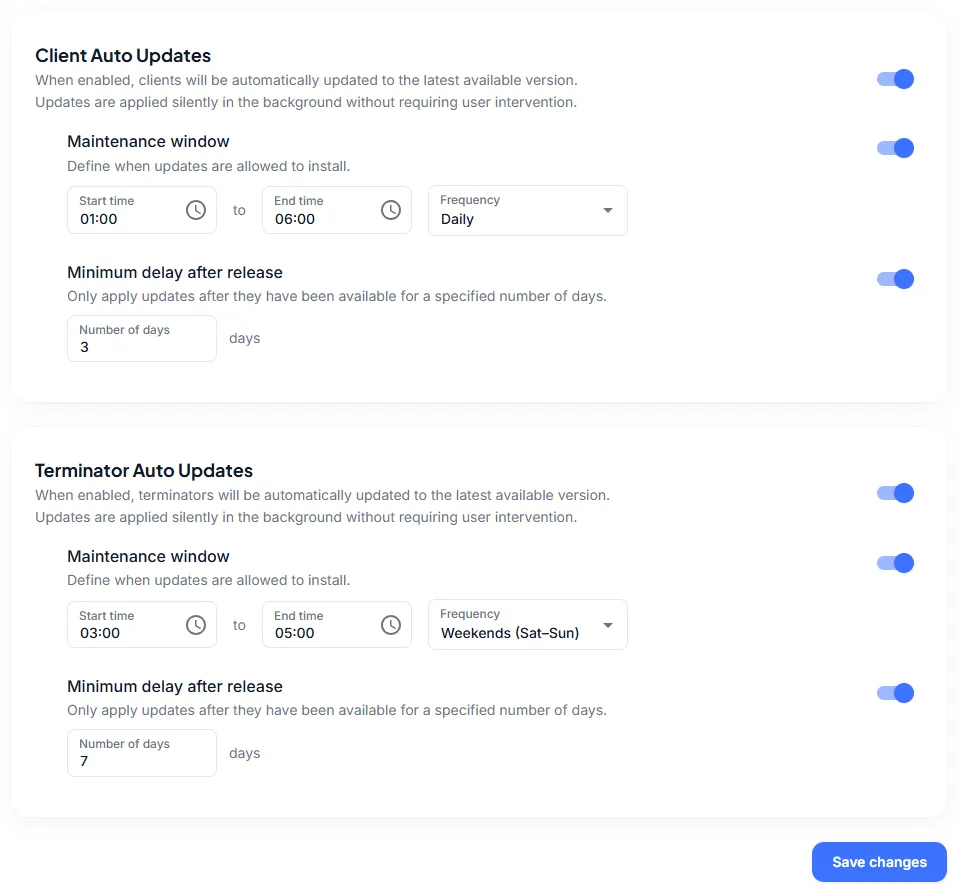
Maintenance window
If updates should not occur any time of day, but rather during off hour periods, a maintenance window can be defined where the device is updated.
Note that the local time on the device is used to determine if it is within this window, to accommodate devices running in different time zones.
Updates may still install during device restarts outside the maintenance window as this will not interrupt ongoing user sessions.
Delay updates after release
Even though only stable releases are available for auto update, an organization may prefer to wait before installing a new version. You can optionally set a delay between a version’s release and when it is installed.
Request update for certain devices
To update certain clients or terminators select them in their respective list in the admin panel and hit the "Update version" button
Requested updates are not applied immediately. Devices check for updates approximately once per hour.
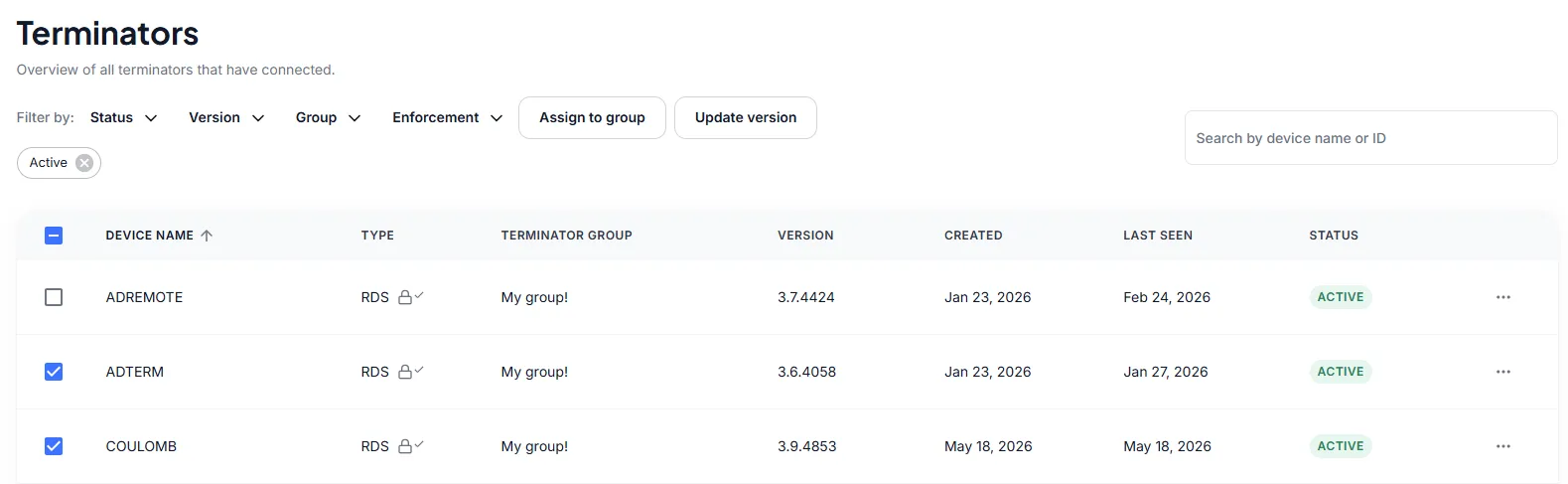
A confirmation dialog will appear where you can decide to schedule for the very next update check in, or schedule for the next maintenance window.
Auto update history
History of all triggered auto updates is available in the admin panel
- Setup & Installers\Auto Update
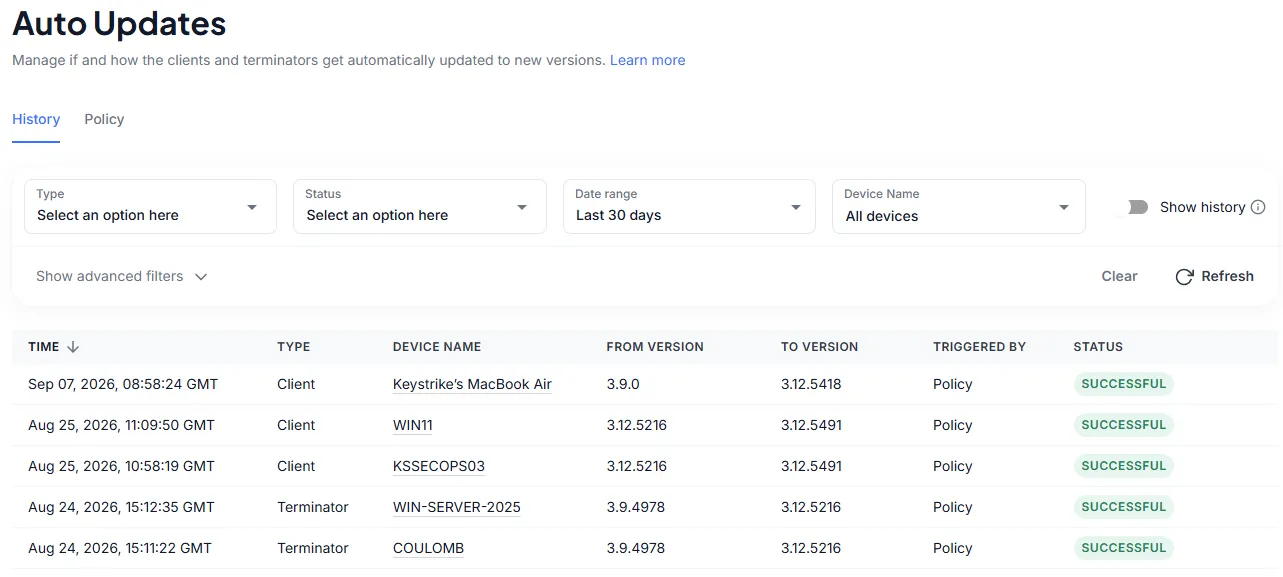
Auto update requests can have the status
- REQUESTED - Auto update was requested for this device by the administrator shown in the triggered by column.
- PENDING - A policy triggered update has been acknowledged by the device and update is under way.
- SUCCESSFUL - The update has been successfully installed.
- FAILED - The device has attempted an update but it has failed, the reason is detailed in behind the (i) icon. If the failure was on the device side, the install log is available for download
By default, each device displays its most recent update activity, reflecting its current update status. History of previous automatic update attempts can be viewed by toggling Show history.